
Download One Tab – Free Chrome & Firefox Tab Manager for Faster Browsing
Overview: Why One Tab Is the Ultimate Tab‑Management Solution
The modern web browser can easily become a chaotic sea of open tabs. One Tab, a free extension for Google Chrome and Mozilla Firefox, was created to bring order to that chaos. By converting every open tab into a compact, scrollable list with a single click, One Tab helps users reclaim memory, improve browser speed, and keep their research organized without losing any context.
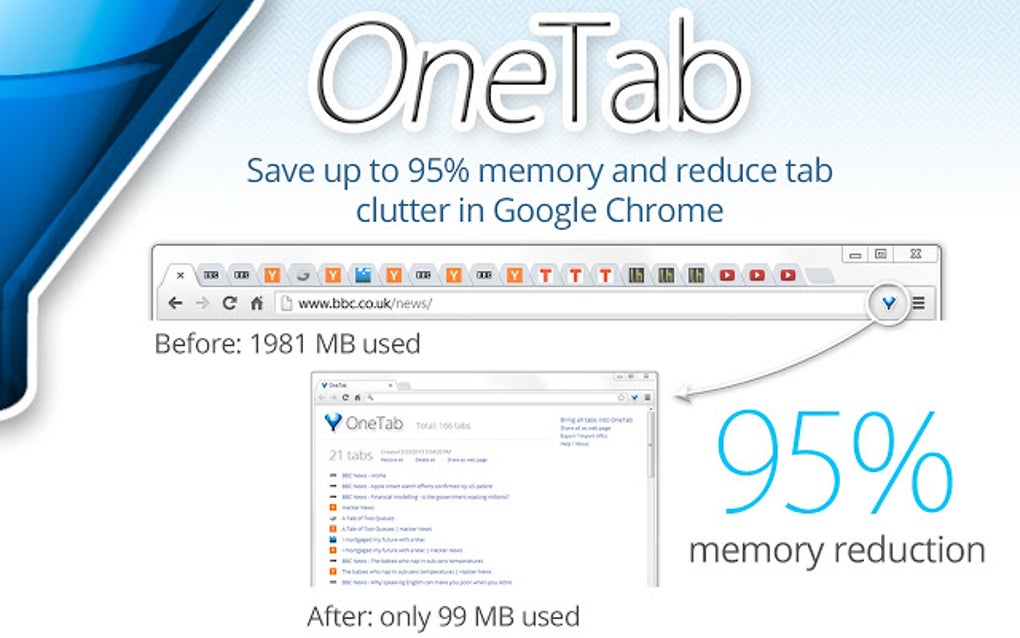
The extension sits discreetly as a funnel‑shaped icon in the toolbar, ready to spring into action whenever the tab count spikes. Whether you’re a student juggling research papers, a marketer comparing campaign data, or simply a multitasker who loves to keep several web pages open, One Tab offers a lightweight, privacy‑focused way to “breathe” new life into your browser. Its core promise is simple: reduce memory usage by up to 95 % while preserving every link you need for later reference.
Because it’s built as a browser extension, installation is a matter of seconds, and removal is just as painless. In short, One Tab is the free, secure, and ultra‑simple tool that lets you keep your browser fast, organized, and ready for the next task.
Core Features That Make One Tab Stand Out
- One‑Click Tab Consolidation: Instantly collapse all open tabs into a single list, freeing up memory and decluttering the UI.
- Memory Savings Up to 95 %: By unloading background pages, One Tab dramatically reduces RAM consumption, especially on tab‑heavy sessions.
- Instant Restore: Click any link in the list to reopen the original tab exactly where you left it, preserving scroll position and form data.
- Shareable Tab Lists: Generate a shareable URL that contains your saved tabs, perfect for collaborating with teammates or friends.
- Privacy‑First Design: No personal data is collected or transmitted; the extension runs locally within the browser.
- Cross‑Browser Compatibility: Available for both Chrome and Firefox, with identical functionality across platforms.
- Lightweight Footprint: The extension itself is under 100 KB, ensuring it doesn’t add noticeable load time.
- Automatic Updates: Receives regular security patches and feature improvements via the Chrome Web Store or Firefox Add‑Ons site.
Installation & Usage: Getting One Tab Up and Running in Minutes
Step‑by‑Step Installation
1. Open the Chrome Web Store (or Firefox Add‑Ons site) and search for “One Tab.”
2. Click the Add to Chrome (or Add to Firefox) button.
3. Confirm the permission prompt – One Tab only needs access to read and manage your tabs.
4. Once installed, a small funnel icon appears in the top‑right corner of your browser toolbar.
How to Consolidate Tabs
When you notice your browser slowing down or the tab bar overflowing, simply click the One Tab icon. In an instant, every open tab disappears and a new “One Tab” page opens, listing each former tab as a clickable link. The list is sorted chronologically, with the most recent pages at the top, but you can drag and reorder items manually if you prefer a custom sequence.
Restoring and Sharing
To reopen a tab, just click its link. If you want to restore the entire session, click the “Restore All” button at the top of the list. For collaboration, click the “Share” button to generate a unique URL that contains the complete list of saved tabs. Anyone with the link can view and open the tabs in their own browser, making research projects or event planning much smoother.
Managing Multiple Lists
One Tab allows you to create separate lists by clicking “Create New List” after you’ve already saved a batch of tabs. This is handy for separating work‑related research from personal browsing, or for grouping tabs by project. Each list can be renamed, reordered, or deleted at any time.
Troubleshooting Common Issues
If you notice that a particular site isn’t loading after being restored, try refreshing the tab manually. Some sites block background loading for security reasons, but a simple refresh usually resolves the issue. In rare cases where the extension seems unresponsive, disable and re‑enable it via the browser’s extensions manager; this forces a fresh reload of the script.
Compatibility, Performance Impact, and the Pros & Cons of One Tab
Supported Platforms: One Tab works natively on Windows, macOS, Linux, and Chrome OS as long as you are using a recent version of Chrome (≥ 88) or Firefox (≥ 85). Mobile versions of Chrome and Firefox do not support the extension, so One Tab is primarily a desktop solution.
Performance Benefits
By unloading inactive pages, One Tab can free up a significant amount of RAM, which is especially valuable on older machines or devices with limited memory. Users have reported smoother scrolling, quicker tab switching, and faster page loads after consolidating dozens of tabs. Because the extension stores only URLs (not full page content), the saved list occupies virtually no disk space.
Pros
- Free and open‑source, with no hidden fees.
- Reduces memory usage dramatically, improving overall system performance.
- Simple, one‑click interface that anyone can master instantly.
- Shareable tab lists make collaboration effortless.
- Privacy‑centric: no data is sent to external servers.
- Works identically on Chrome and Firefox, ensuring consistency across browsers.
Cons
- Limited to desktop browsers; no mobile app or extension support.
- Does not sync lists across devices automatically (requires manual sharing).
- Advanced tab‑management features like grouping, tagging, or automatic categorization are absent.
- Occasional incompatibility with sites that prevent background loading, requiring a manual refresh.
Overall Verdict: One Tab delivers on its promise of decluttering and speeding up the browser without sacrificing privacy. While it lacks some of the richer features found in paid tab managers, its zero‑cost, zero‑bloat approach makes it an essential utility for anyone who routinely opens many tabs.
Frequently Asked Questions About One Tab
Is One Tab completely free or does it contain ads?
One Tab is 100 % free. The extension does not display ads, nor does it require a subscription. All features are available without any hidden costs.
Will One Tab collect my browsing history?
No. One Tab operates locally in your browser and only stores the URLs of the tabs you choose to collapse. No personal data is transmitted to external servers.
Can I sync my One Tab lists across multiple computers?
The extension does not have built‑in sync. However, you can share a list via the generated URL and import it on another device manually.
Does One Tab work with other Chromium‑based browsers like Edge?
Yes. Because Edge is built on Chromium, you can install One Tab from the Chrome Web Store and it will function the same way.
How do I delete a saved list I no longer need?
Open the One Tab page, click the three‑dot menu next to the list you want to remove, and select “Delete.” The list is erased instantly from your browser.
Conclusion: Should You Download One Tab?
If you find yourself drowning in a sea of open tabs, One Tab offers a quick, free, and privacy‑friendly lifeline. Its one‑click consolidation, impressive memory savings, and easy sharing capabilities make it a must‑have utility for anyone who values a tidy browsing experience. While power users may miss advanced grouping or cross‑device sync, the core functionality is solid enough to benefit students, professionals, and casual surfers alike. Give One Tab a try today—install it in seconds, declutter your browser, and enjoy a faster, more organized web experience.
Download One Tab now and reclaim control over your browsing sessions.







